Generic Guide
Select Family and Version
Choose a package to tailor file lists and verification commands throughout this guide.
Use This Workflow When
Use this workflow when an SBE update shows AdditionalContentRequired or the download connector cannot be used.
Outcome
The selected SBE package is imported, checked for readiness, and installed on the cluster.
Before You Start
An existing SBE installation is present on the cluster
You have administrative access to the cluster
The target SBE update shows AdditionalContentRequired, or the download connector is unavailable
Step 1
Connect & Discover Updates
Establish connection and discover available updates
Connect to Your Azure Local
Open a remote PowerShell session to one machine in the system using the deployment user account.
$cred = Get-Credential
Enter-PSSession -ComputerName "{{CLUSTER_NODE}}" -Credential $cred
Sign in with the deployment user account created during Active Directory prep.
Confirm Software and Verify System Health
Ensure the system is on Azure Local 2311+ and is healthy before proceeding.
whoami
Get-SolutionUpdateEnvironment
Discover Available Updates
List update candidates and inspect details of the one you plan to install.
$Update = Get-SolutionUpdate
$Update | ft DisplayName, PackageType, Version, SbeVersion, State
Sample output
PS C:\Users\lcmuser> $Update = Get-SolutionUpdate
PS C:\Users\lcmuser> $Update | ft DisplayName, PackageType, Version, SbeVersion, State

DisplayName                      PackageType Version          SbeVersion                        State
-----------                      ----------- -------          ----------                        -----
SBE_DataON_AZS1_5.0.2604.700     SBE         5.0.2604.700     5.0.2604.700                     AdditionalContentRequired
2026.03 Cumulative Update        Solution    12.2603.1002.502                                    Ready
AdditionalContentRequired means vendor package files must be imported before installation.
Sample output
PS C:\Users\lcmuser> $Update = Get-SolutionUpdate
PS C:\Users\lcmuser> $Update | ft DisplayName, PackageType, Version, SbeVersion, State

DisplayName                      PackageType Version          SbeVersion     State
-----------                      ----------- -------          ----------     -----
SBE_DataON_AZS1_5.0.2604.700     SBE         5.0.2604.700     5.0.2604.700   Ready
2026.03 Cumulative Update        Solution    12.2603.1002.502                Ready
Ready means the update can continue without manual package import when the connector is enabled.
You may see both Solution and SBE (Solution Builder Extension) items.
Review the State column before choosing a workflow: Ready usually points to the download connector workflow, while AdditionalContentRequired points to manual package import.
If the expected update isn't Ready or AdditionalContentRequired, remove filters to see non-ready states.
Important Notes
If Confirm Software and Verify System Health shows SBE 4.1.2411.xxxx or later and the update is Ready or the connector can be enabled, use Update with Download Connector instead of manual package import.
Step 2
Download and Import SBE Package Files
Required Download the package files, copy them to the cluster, and import them manually
Download Package Files
Download the required SBE files, then copy them to the cluster storage import folder.
Select a package before downloading
Use the family and version selector at the top of this guide to load exact files and package-specific commands.
Every SBE package includes three files, for example:
SBE_Discovery_DataON.xmlSBE_DataON_AZL8000i_5.0.2604.800.xmlSBE_DataON_AZL8000i_5.0.2604.800.zip
Use manual import when the SBE update shows AdditionalContentRequired or the download connector is unavailable.
Manual Import Sequence
-
Download Files
Download the discovery XML, package metadata XML, and ZIP package from the file list above
-
Create Import Directory
Create the import directory on your cluster storage if it does not already exist
New-Item C:\ClusterStorage\Infrastructure_1\Shares\SU1_Infrastructure_1\import -ItemType Directory -
Copy Files
Copy the three downloaded files whose names start with SBE_ into the import directory
Package files selected for copy 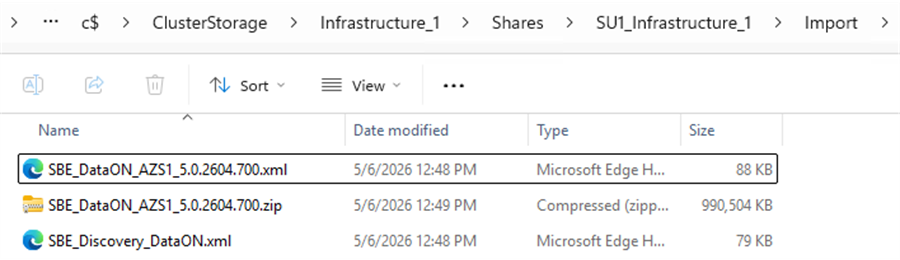
Example file names vary by hardware family and SBE version.
Package files in the import folder 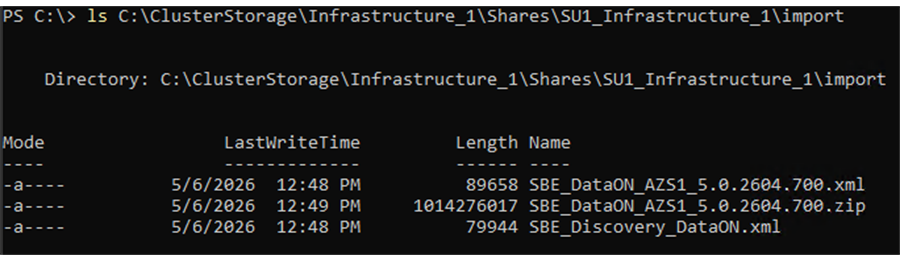
The import folder should contain the discovery XML, package metadata XML, and ZIP package.
-
Import Updates
Import the package files after they are copied into the import directory
Add-SolutionUpdate -SourceFolder C:\ClusterStorage\Infrastructure_1\Shares\SU1_Infrastructure_1\importImport command output 
Continue once the import command completes and the package is discoverable.
-
Confirm Update Is Ready
Verify the imported SBE update is discovered and ready before moving to readiness checks
Get-SolutionUpdateGet-SolutionUpdate | Where-Object { $_.PackageType -eq 'SBE' -and $_.State -imatch 'Ready' }The SBE update appears in the update list
State shows Ready before continuing
Sample update list output 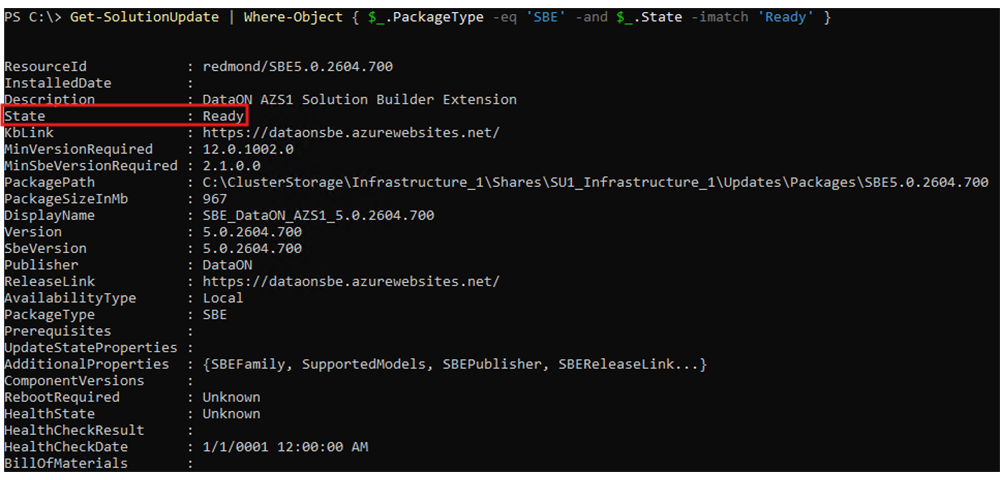
Continue once the target SBE update shows Ready.
All three files are required before running the import command
Copy only the SBE package files into the cluster storage import folder before importing
Continue with the readiness check after the imported SBE update shows Ready
Step 3
Check Update Readiness
Verify packages are imported and run health checks
Run preparation so Azure Local can validate the selected SBE update before installation.
Start Preparation (PrepareOnly)
Start preparation to run health and readiness checks without starting installation.
Get-SolutionUpdate | Where-Object {$_.State -imatch "Ready" -and $_.PackageType -eq "SBE"} | Sort-Object -Property ResourceID -Descending | Select-Object -First 1 | Start-SolutionUpdate -PrepareOnly

PrepareOnly starts readiness checks without installing the update.
If no Ready SBE package is selected, return to the import or connector verification step before starting preparation.
The recommended command selects the latest Ready SBE package by ResourceID. To target a specific version, filter Get-SolutionUpdate by Sbeversion before running Start-SolutionUpdate -PrepareOnly.
For manual imports, PrepareOnly primarily performs health checks. For download connector updates, it may also download package content before health checks.
Monitor Preparation Progress
Check the status of the preparation process.
Get-SolutionUpdate | ft Version,State,UpdateStateProperties,HealthState

Continue once readiness checks complete successfully.
States you may see: Downloading, HealthChecking, ReadyToInstall, and HealthCheckFailed. Troubleshoot if HealthCheckFailed appears.
Step 4
Start Installation
Start installation after readiness checks pass
Start installation only after preparation completes and the selected SBE update is ready to install. Machines may reboot; sessions can drop and need re-establishing.
Start the Installation
Run the installation command after readiness checks complete successfully.
$InstanceId = Get-SolutionUpdate | Where-Object {$_.State -imatch "Ready" -and $_.PackageType -eq "SBE"} | Sort-Object -Property ResourceID -Descending | Select-Object -First 1 | Start-SolutionUpdate

Save the returned instance ID for tracking or troubleshooting.
Save $InstanceId for troubleshooting reference.
If installation is interrupted, resume with Get-SolutionUpdate -Id $InstanceId | Start-SolutionUpdate.
Use the next step to track installation progress and verify completion.
Step 5
Track Progress & Verify
Monitor installation and verify completion
Track Progress
Track installation progress preferably in Azure portal. PowerShell monitoring is available if portal status is not enough.
Get-SolutionUpdate | ft Version,State,UpdateStateProperties,HealthState

Status values change while the update progresses.

Use the verification commands after installation reports success.
States You May See
Downloading
Preparing
HealthChecking
Installing
Installed
If monitoring with PowerShell, connect to the last server updated to minimize session drops during reboots.
If you saved $InstanceId from the install step, use Get-SolutionUpdate -Id $InstanceId for targeted status checks.
Verify Installation
Confirm solution version and OS version post-install.
Get-SolutionUpdateEnvironment | ft State, CurrentSbeVersion, CurrentVersion
cmd /c ver

Use this as the final confirmation that the environment reports the expected version.
State: AppliedSuccessfully
CurrentVersion matches the installed SBE version
OS build matches the installed recipe