Package-Specific Guide
AZS-7000 version 4.1.2503.700
File lists and package verification commands are tailored to this selected SBE package. Choose another package any time.
Use This Workflow When
Use this workflow when SBE is not installed on the cluster yet.
Outcome
SBE is installed on the cluster, with an optional follow-up to enable automatic downloads for future updates.
Before You Start
Azure Local 23H2 (2311.2) or later is deployed and registered in Azure
You have administrative access to the cluster
You can download SBE packages from the DataON portal
Step 1
Connect & Discover Updates
Establish connection and discover available updates
Connect to Your Azure Local
Open a remote PowerShell session to one machine in the system using the deployment user account.
$cred = Get-Credential
Enter-PSSession -ComputerName "{{CLUSTER_NODE}}" -Credential $cred
Sign in with the deployment user account created during Active Directory prep.
Confirm Software and Verify System Health
Ensure the system is on Azure Local 2311+ and is healthy before proceeding.
whoami
Get-SolutionUpdateEnvironment
Discover Available Updates
List update candidates and inspect details of the one you plan to install.
$Update = Get-SolutionUpdate
$Update | ft DisplayName, PackageType, Version, SbeVersion, State
Sample output
PS C:\Users\lcmuser> $Update = Get-SolutionUpdate
PS C:\Users\lcmuser> $Update | ft DisplayName, PackageType, Version, SbeVersion, State

DisplayName                      PackageType Version          SbeVersion                        State
-----------                      ----------- -------          ----------                        -----
SBE_DataON_AZS1_5.0.2604.700     SBE         5.0.2604.700     5.0.2604.700                     AdditionalContentRequired
2026.03 Cumulative Update        Solution    12.2603.1002.502                                    Ready
AdditionalContentRequired means vendor package files must be imported before installation.
Sample output
PS C:\Users\lcmuser> $Update = Get-SolutionUpdate
PS C:\Users\lcmuser> $Update | ft DisplayName, PackageType, Version, SbeVersion, State

DisplayName                      PackageType Version          SbeVersion     State
-----------                      ----------- -------          ----------     -----
SBE_DataON_AZS1_5.0.2604.700     SBE         5.0.2604.700     5.0.2604.700   Ready
2026.03 Cumulative Update        Solution    12.2603.1002.502                Ready
Ready means the update can continue without manual package import when the connector is enabled.
You may see both Solution and SBE (Solution Builder Extension) items.
Review the State column before choosing a workflow: Ready usually points to the download connector workflow, while AdditionalContentRequired points to manual package import.
If the expected update isn't Ready or AdditionalContentRequired, remove filters to see non-ready states.
Important Notes
Because this is a first-time SBE installation, continue with manual package import after discovery. Download connector guidance applies to future updates after SBE is installed.
Step 2
Download and Import SBE Package Files
Required Download the package files, copy them to the cluster, and import them manually
Download Package Files
Download the required SBE files, then copy them to the cluster storage import folder.
Package Files (3 files)
SBE package files for AZS-7000 - 4.1.2503.700
| File Name | Size | Last Modified | Action |
|---|---|---|---|
|
SBE_DataON_AZS1_4.1.2503.700.xml
Manual download
|
91.61 KB
|
4/11/2025 | |
|
SBE_DataON_AZS1_4.1.2503.700.zip
Manual download
|
655.54 MB
|
4/11/2025 | |
|
SBE_Discovery_DataON.xml
Manual download
|
78.07 KB
|
5/13/2026 |
Selected Package Context
Commands and file checks below are tailored for AZS-7000 version 4.1.2503.700.
Required files
-
SBE_Discovery_DataON.xml78.07 KB -
SBE_DataON_AZS1_4.1.2503.700.xml91.61 KB -
SBE_DataON_AZS1_4.1.2503.700.zip655.54 MB
Screenshots and sample command output below are representative examples. Use the selected file list and generated verification command for exact package-specific values.
Use manual import when the SBE update shows AdditionalContentRequired or the download connector is unavailable.
Manual Import Sequence
-
Download Files
Download the discovery XML, package metadata XML, and ZIP package from the file list above
-
Create Import Directory
Create the import directory on your cluster storage if it does not already exist
New-Item C:\ClusterStorage\Infrastructure_1\Shares\SU1_Infrastructure_1\import -ItemType Directory -
Copy Files
Copy the three downloaded files whose names start with SBE_ into the import directory
Package files selected for copy 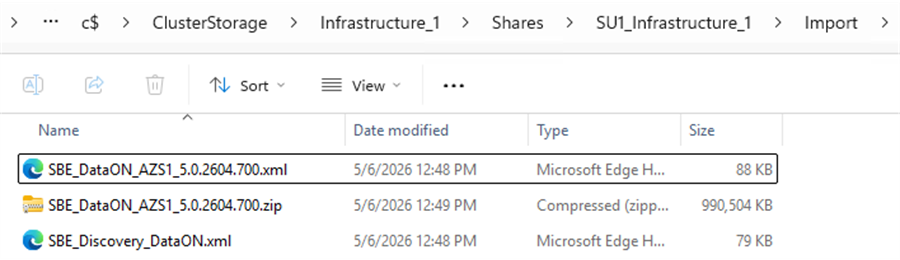
Example file names vary by hardware family and SBE version.
Selected package files in the import folder Generated from your selected package
PS C:\Users\lcmuser> Get-ChildItem $SBEImportPath -File | Select-Object Name, Length

Name                                 Length
----                                 ------
SBE_Discovery_DataON.xml           78.07 KB
SBE_DataON_AZS1_4.1.2503.700.xml   91.61 KB
SBE_DataON_AZS1_4.1.2503.700.zip  655.54 MB
These file names come from the selected family and version. Confirm the import folder contains each one before importing updates.
Verify copied package files$SBEImportPath = "C:\ClusterStorage\Infrastructure_1\Shares\SU1_Infrastructure_1\import" $RequiredSBEFiles = @( "SBE_Discovery_DataON.xml", "SBE_DataON_AZS1_4.1.2503.700.xml", "SBE_DataON_AZS1_4.1.2503.700.zip" ) $RequiredSBEFiles | ForEach-Object { $FilePath = Join-Path $SBEImportPath $_ if (-not (Test-Path $FilePath)) { throw "Missing required SBE package file: $_" } } Get-ChildItem $SBEImportPath -File | Where-Object { $RequiredSBEFiles -contains $_.Name } | Select-Object Name, Length -
Import Updates
Import the package files after they are copied into the import directory
Add-SolutionUpdate -SourceFolder C:\ClusterStorage\Infrastructure_1\Shares\SU1_Infrastructure_1\importSelected package import output Generated from your selected package
PS C:\Users\lcmuser> Add-SolutionUpdate -SourceFolder C:\ClusterStorage\Infrastructure_1\Shares\SU1_Infrastructure_1\import -Verbose
VERBOSE: Adding solution update at location C:\ClusterStorage\Infrastructure_1\Shares\SU1_Infrastructure_1\import.
VERBOSE: Adding solution update manifest contents to folder SBE4.1.2503.700. Progress 100%.
VERBOSE: Solution update at location C:\ClusterStorage\Infrastructure_1\Shares\SU1_Infrastructure_1\import added.
The manifest folder uses the selected SBE version.
-
Confirm Update Is Ready
Verify the imported SBE update is discovered and ready before moving to readiness checks
Get-SolutionUpdateGet-SolutionUpdate | Where-Object { $_.PackageType -eq 'SBE' -and $_.State -imatch 'Ready' }The SBE update appears in the update list
State shows Ready before continuing
Selected package ready output Generated from your selected package
PS C:\> Get-SolutionUpdate | Where-Object { $_.PackageType -eq 'SBE' -and $_.State -imatch 'Ready' }

ResourceId            : redmond/SBE4.1.2503.700
InstalledDate         :
Description           : DataON AZS1 Solution Builder Extension
State                 : Ready
KbLink                : https://dataonsbe.azurewebsites.net/
MinVersionRequired    : 12.0.1002.0
MinSbeVersionRequired : 2.1.0.0
PackagePath           : C:\ClusterStorage\Infrastructure_1\Shares\SU1_Infrastructure_1\Updates\Packages\SBE4.1.2503.700
PackageSizeInMb       : 656
DisplayName           : SBE_DataON_AZS1_4.1.2503.700
Version               : 4.1.2503.700
SbeVersion            : 4.1.2503.700
Publisher             : DataON
ReleaseLink           : https://dataonsbe.azurewebsites.net/
AvailabilityType      : Local
PackageType           : SBE
AdditionalProperties  : {SBEFamily, SupportedModels, SBEPublisher, SBEReleaseLink...}
RebootRequired        : Unknown
HealthState           : Unknown
HealthCheckDate       : 1/1/0001 12:00:00 AM
Ready confirms the imported SBE package was discovered and can continue to readiness checks.
All three files are required before running the import command
Copy only the SBE package files into the cluster storage import folder before importing
Continue with the readiness check after the imported SBE update shows Ready
Step 3
Check Update Readiness
Verify packages are imported and run health checks
Run preparation so Azure Local can validate the selected SBE update before installation.
Start Preparation (PrepareOnly)
Start preparation to run health and readiness checks without starting installation.
Get-SolutionUpdate | Where-Object {$_.State -imatch "Ready" -and $_.PackageType -eq "SBE"} | Sort-Object -Property ResourceID -Descending | Select-Object -First 1 | Start-SolutionUpdate -PrepareOnly
Generated from your selected package
PS C:\> Get-SolutionUpdate | Where-Object {$_.State -imatch "Ready" -and $_.PackageType -eq "SBE"} | Sort-Object -Property ResourceID -Descending | Select-Object -First 1 | Start-SolutionUpdate -PrepareOnly

Confirm
Are you sure you want to perform this action?
Performing the operation "Accept the solution extension license terms provided by DataON. License URI:
https://dataon.io/dataon-must-end-user-license-agreement-eula/" on target "SBE_DataON_AZS1_4.1.2503.700".
Y Yes  [A] Yes to All  [N] No  [L] No to All  [S] Suspend  [?] Help (default is "Y"): Y
redmond/SBE4.1.2503.700/878640d7-9e3b-4fae-a185-1bd1d3e3fdd1
The target package and resource ID prefix are generated from the selected family and version.
If no Ready SBE package is selected, return to the import or connector verification step before starting preparation.
The recommended command selects the latest Ready SBE package by ResourceID. To target a specific version, filter Get-SolutionUpdate by Sbeversion before running Start-SolutionUpdate -PrepareOnly.
For manual imports, PrepareOnly primarily performs health checks. For download connector updates, it may also download package content before health checks.
Monitor Preparation Progress
Check the status of the preparation process.
Get-SolutionUpdate | ft Version,State,UpdateStateProperties,HealthState
Generated from your selected package
PS C:\> Get-SolutionUpdate | ft Version,State,UpdateStateProperties,HealthState

Version      State          UpdateStateProperties HealthState
-------      -----          --------------------- -----------
4.1.2503.700 HealthChecking                       Unknown
HealthChecking means preparation is running readiness checks. Continue monitoring until checks complete.
States you may see: Downloading, HealthChecking, ReadyToInstall, and HealthCheckFailed. Troubleshoot if HealthCheckFailed appears.
Step 4
Start Installation
Start installation after readiness checks pass
Start installation only after preparation completes and the selected SBE update is ready to install. Machines may reboot; sessions can drop and need re-establishing.
Start the Installation
Run the installation command after readiness checks complete successfully.
$InstanceId = Get-SolutionUpdate | Where-Object {$_.State -imatch "Ready" -and $_.PackageType -eq "SBE"} | Sort-Object -Property ResourceID -Descending | Select-Object -First 1 | Start-SolutionUpdate
Generated from your selected package
PS C:\> $InstanceId = Get-SolutionUpdate | Where-Object {$_.State -imatch "Ready" -and $_.PackageType -eq "SBE"} | Sort-Object -Property ResourceID -Descending | Select-Object -First 1 | Start-SolutionUpdate

Confirm
Are you sure you want to perform this action?
Performing the operation "Accept the solution extension license terms provided by DataON. License URI:
https://dataon.io/dataon-must-end-user-license-agreement-eula/" on target "SBE_DataON_AZS1_4.1.2503.700".
Y Yes  [A] Yes to All  [N] No  [L] No to All  [S] Suspend  [?] Help (default is "Y"): Y
PS C:\> $InstanceId
redmond/SBE4.1.2503.700/878640d7-9e3b-4fae-a185-1bd1d3e3fdd1
Save the returned instance ID; it is used to track installation progress.
Save $InstanceId for troubleshooting reference.
If installation is interrupted, resume with Get-SolutionUpdate -Id $InstanceId | Start-SolutionUpdate.
Use the next step to track installation progress and verify completion.
Step 5
Track Progress & Verify
Monitor installation and verify completion
Track Progress
Track installation progress preferably in Azure portal. PowerShell monitoring is available if portal status is not enough.
Get-SolutionUpdate | ft Version,State,UpdateStateProperties,HealthState
Generated from your selected package
PS C:\> Get-SolutionUpdate | ft Version,State,UpdateStateProperties,HealthState

Version      State      UpdateStateProperties HealthState
-------      -----      --------------------- -----------
4.1.2503.700 Installing 5% complete.          Success
Installing with a progress value means the SBE update is actively applying.
Generated from your selected package
PS C:\> Get-SolutionUpdate | ft Version,State,UpdateStateProperties,HealthState

Version      State     UpdateStateProperties HealthState
-------      -----     --------------------- -----------
4.1.2503.700 Installed                       Unknown
Installed confirms the selected SBE package finished applying.
States You May See
Downloading
Preparing
HealthChecking
Installing
Installed
If monitoring with PowerShell, connect to the last server updated to minimize session drops during reboots.
If you saved $InstanceId from the install step, use Get-SolutionUpdate -Id $InstanceId for targeted status checks.
Verify Installation
Confirm solution version and OS version post-install.
Get-SolutionUpdateEnvironment | ft State, CurrentSbeVersion, CurrentVersion
cmd /c ver
Generated from your selected package
PS C:\> Get-SolutionUpdateEnvironment | ft State, CurrentSbeVersion, CurrentVersion

State               CurrentSbeVersion CurrentVersion
-----               ----------------- -----------------
AppliedSuccessfully 4.1.2503.700      12.2604.1003.2002
AppliedSuccessfully confirms the environment reports the selected SBE version.
State: AppliedSuccessfully
CurrentVersion matches the installed SBE version
OS build matches the installed recipe
Step 6
Enable Download Connector for Future Updates
Optional Verify cluster registration and enable the connector for future update package downloads
Complete cluster registration verification, then configure download connector.
1. Verify Cluster Registration
Before enabling automatic downloads, ensure your cluster is registered with the DataON portal.
Sign in to the DataON SBE portal with your Microsoft account.
Navigate to Manage > Clusters.
Look for your cluster in the list.
Verify the cluster name and node count match your environment.
If the cluster is missing or incorrect, complete cluster registration before continuing.
2. Check Download Connector Status
Once registration is confirmed, check if download connector is already enabled.
Get-SolutionExtensionProperty

Look for EnableSBEDownload to determine whether the connector is already enabled.
Look for the EnableSBEDownload property in the output.
If the property shows true, connector is already enabled.
3. Enable Download Connector
If the status property does not exist or shows false, the status check indicates the download connector is disabled. Enable it.
Set-SolutionExtensionProperty -PropertyHash @{EnableSBEDownload='true'}
This setting persists across reboots and applies to future updates.
No restart is required.
4. Verify Successful Configuration
Confirm both registration and download connector are properly configured.
Get-SolutionExtensionProperty
EnableSBEDownload should show true before using the download connector workflow.
EnableSBEDownload should show true.
Your cluster should appear in the registered clusters list on the DataON portal.